
DaamDesk must be activated before you begin using the software. Complete the activation steps below in your WordPress administration area.
Before you activate
- Install and activate the DaamDesk plugin in WordPress.
- Have the activation server URL and activation key supplied with your DaamDesk purchase ready.
- Sign in to WordPress with an administrator account.
- Make sure the website can connect to the internet over HTTPS.
Activate DaamDesk
- Open WordPress administration and select DaamDesk → License.
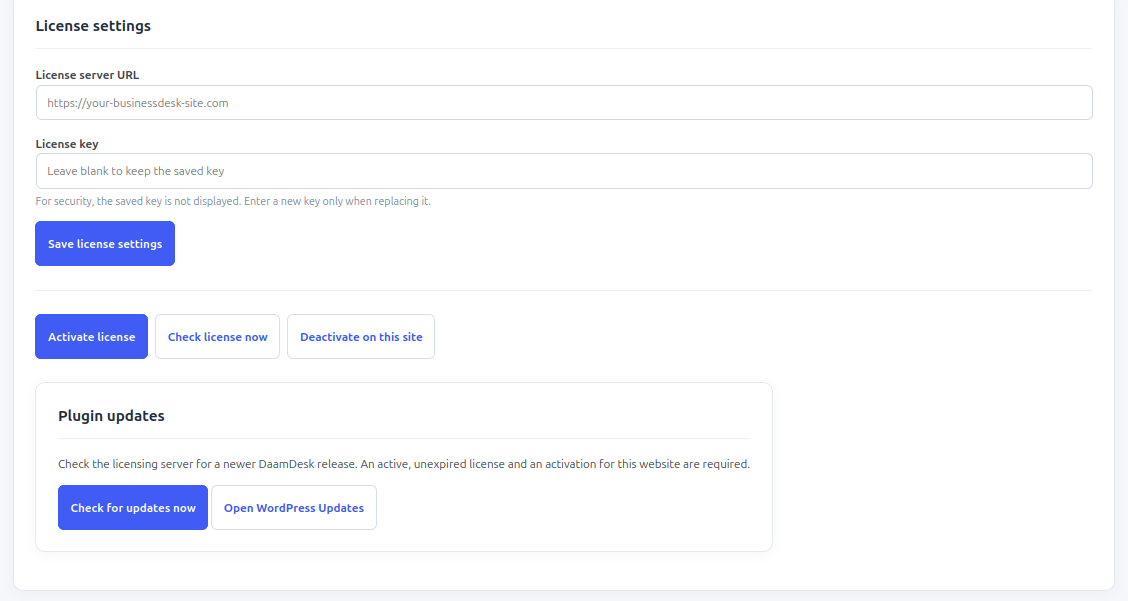
- In License settings, enter the activation server URL provided with your DaamDesk purchase.
- Enter your activation key in the License key field. If a saved key is already present and you are not replacing it, leave the field blank as indicated on the screen.
- Select Save license settings.
- Select Activate license and wait for the response.
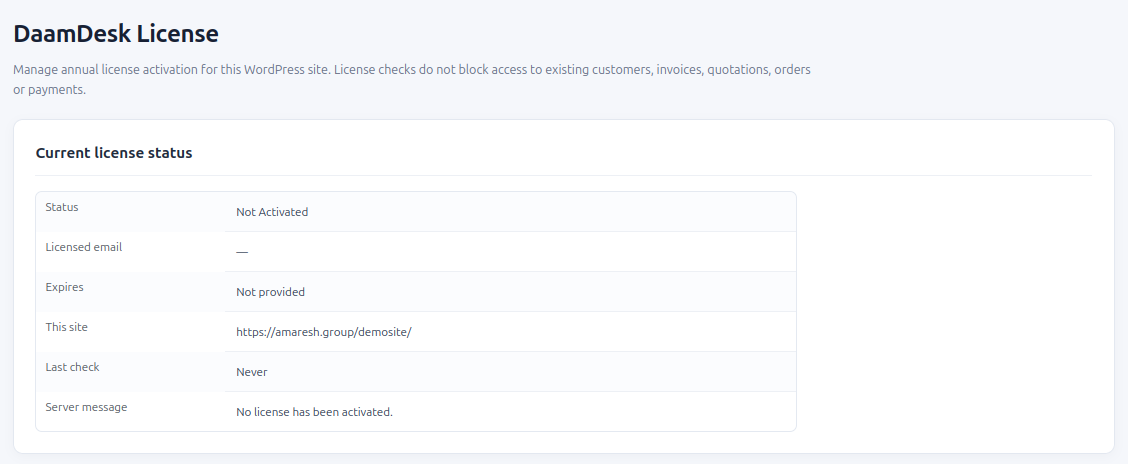
- Review Current license status and the server message. Confirm the status indicates successful activation before using DaamDesk.
Check activation and updates
- Use Check license now to request a fresh status check when needed.
- The status panel shows information such as activation status, licensed email, expiry, the current site, last check, and the server message.
- To check for a newer release, use Check for updates now. Update availability depends on an active, unexpired activation for this website.
- Back up your WordPress files and database before installing an update.
If activation does not succeed
- Confirm the activation server URL has been entered correctly, including https://.
- Check that the activation key was copied accurately and belongs to this installation.
- Select Save license settings before trying Activate license again.
- Use the displayed server message to understand the reported problem.
- If activation still fails, contact Arriyon support and include the message and your DaamDesk version. Do not send your full activation key or other secrets.
Moving to another website
If you move DaamDesk to a different domain or hosting account, check the activation status on the new site and follow the instructions supplied with your purchase. Use Deactivate on this site only when you intend to release the current site activation.
Screenshots from DaamDesk
These reference images show the interface described in this guide. Labels may vary slightly between plugin versions.
Release-specific note
DaamDesk capabilities and settings can vary by version. This guide reflects DaamDesk v0.30.0 and the supplied interface screenshots. If a menu or option differs in your installation, check the release notes or contact support.
Thank you for your feedback. You can also send us details.