
DaamDesk separates invoices from payment records. Use the Invoices screen to review what is owed and the Payments screen to record or review payments.
Create an invoice from an order
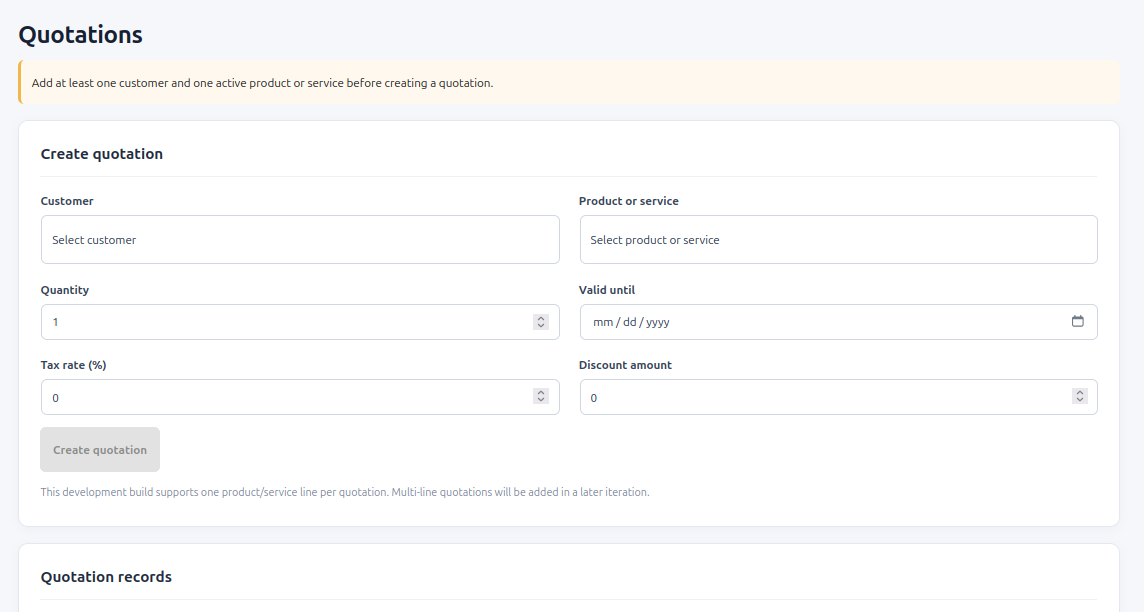
- Create a quotation for a customer and an active product/service.
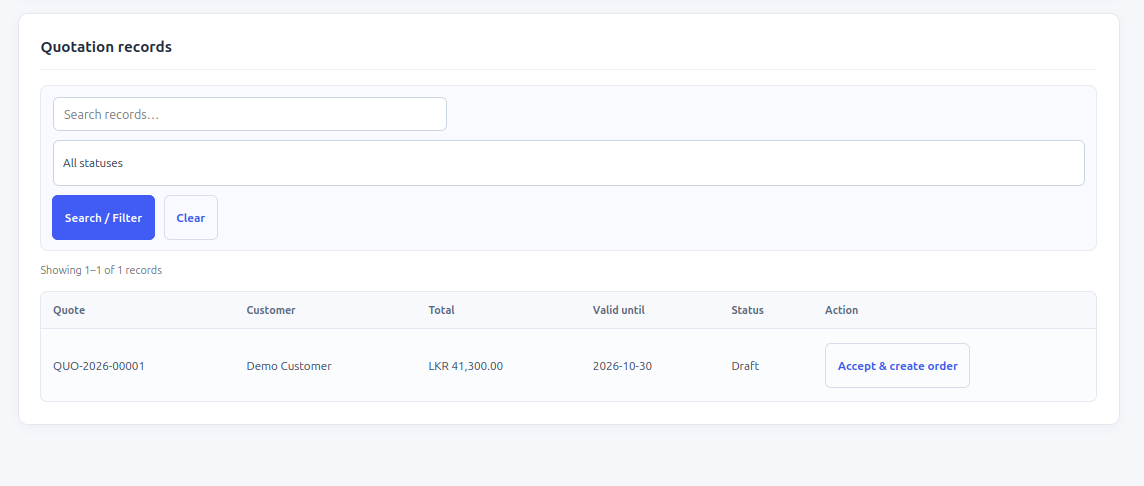
- Review the quotation details and totals.
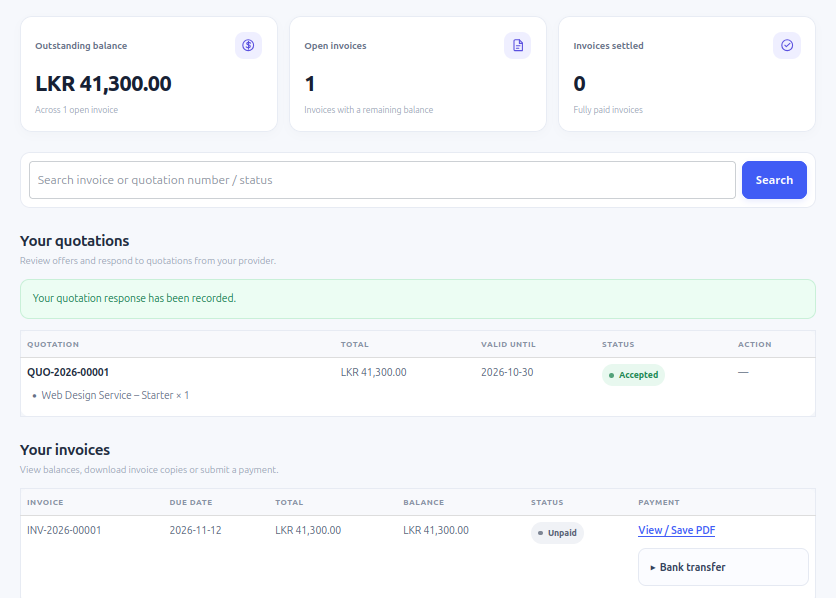
- When the customer accepts the quotation, the portal workflow can create an order.
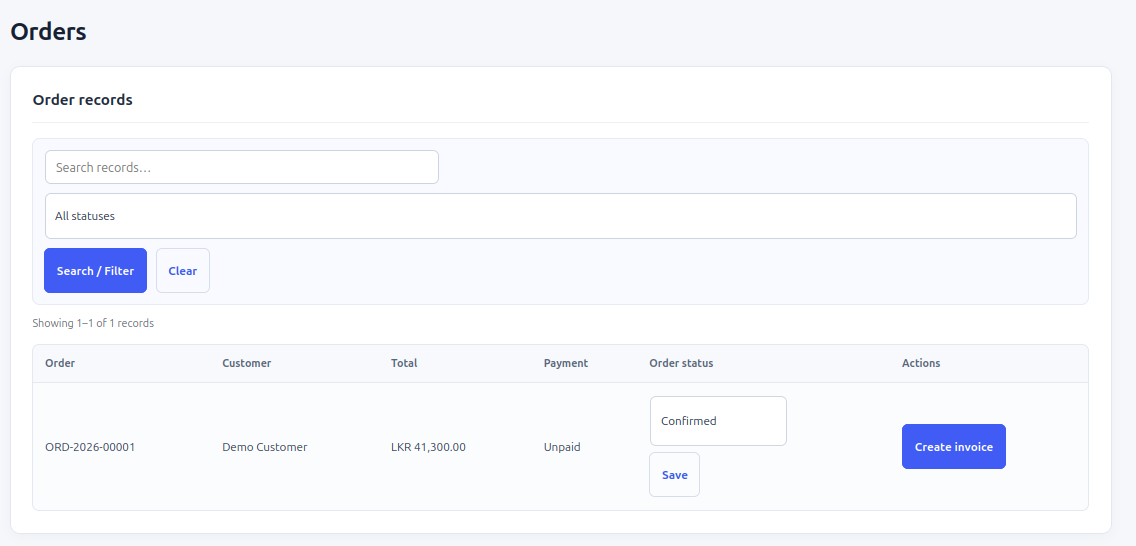
- Open DaamDesk → Orders and use the available action to create an invoice for the order.
- Review the invoice, due date, currency, and total before sharing it with the customer.
Invoice statuses
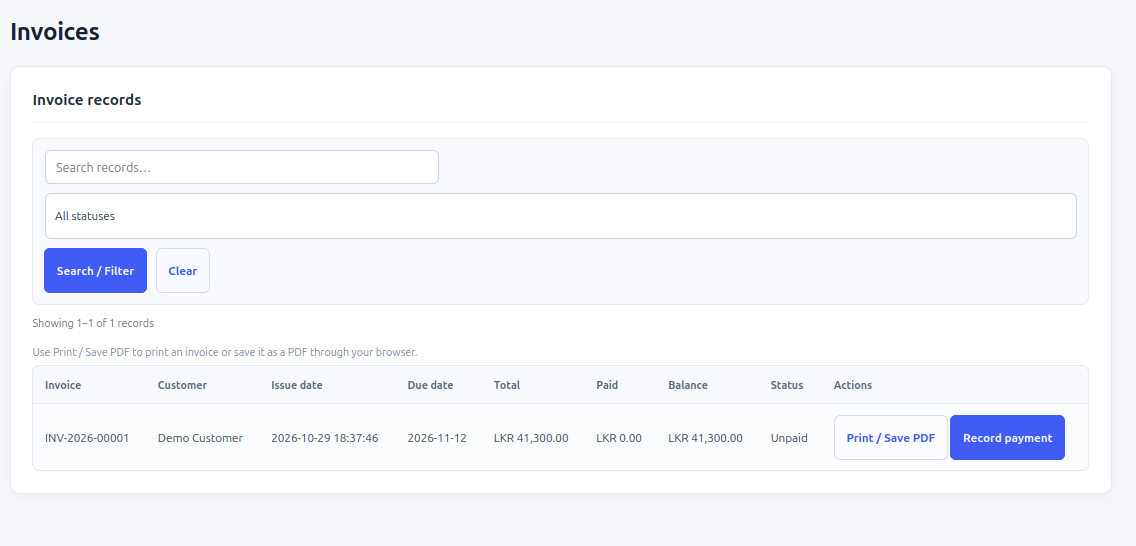
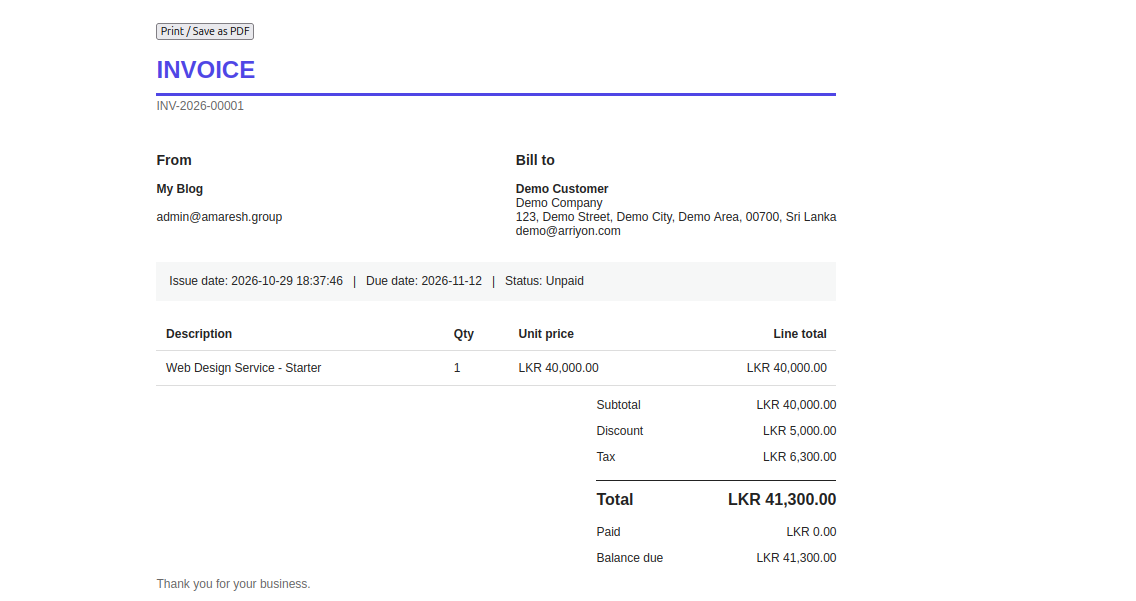
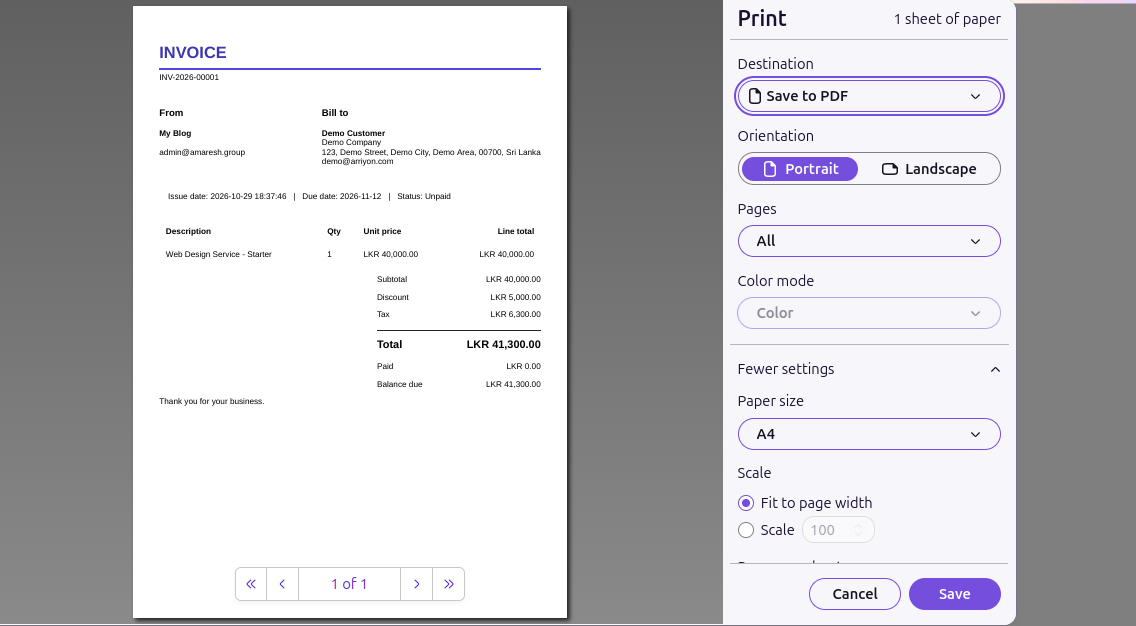
The invoice list uses statuses including Unpaid, Partially paid, Paid, Overdue, and Cancelled. The list supports search, status filtering, and pagination. The invoice screen includes Print / Save PDF functionality through the browser.
Record a payment manually
- Open DaamDesk → Payments.
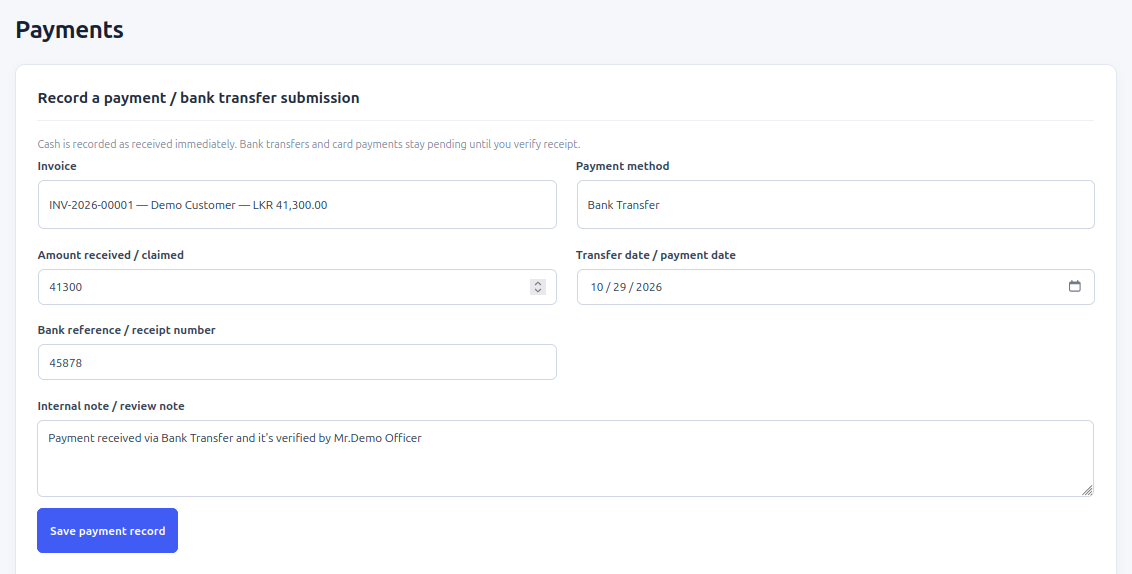
- Select the invoice and enter the amount, payment method, payment date, and any reference/receipt details requested by the form.
- The amount must be greater than zero and cannot exceed the remaining invoice balance.
- Cash entries are recorded as approved. Bank-transfer and card entries are initially marked pending verification.
- Verify receipt independently before approving a payment.
Review a pending payment
- Open DaamDesk → Payments and filter for Pending verification if needed.
- Check the bank or payment provider record and the submitted reference/evidence.
- Choose Approve only when you have verified the payment. Approval applies the payment to the invoice.
- Choose Decline if the submission cannot be verified; add a useful review note when appropriate.
- Confirm the payment and invoice statuses after review.
Important accounting note
A payment record or customer-submitted receipt is not proof that funds have cleared. Reconcile payments against your bank or payment provider and follow your own accounting and tax requirements.
Screenshots from DaamDesk
These reference images show the interface described in this guide. Labels may vary slightly between plugin versions.

Release-specific note
DaamDesk capabilities and settings can vary by version. This guide reflects DaamDesk v0.30.0 and the supplied interface screenshots. If a menu or option differs in your installation, check the release notes or contact support.
Thank you for your feedback. You can also send us details.