
DaamDesk v0.30.0 includes configuration and checkout code for PayHere and PayPal. Gateway availability depends on your merchant account, currency, configuration, and the provider’s terms.
General preparation
- Use HTTPS on the WordPress website.
- Create or access the merchant account you control.
- Open DaamDesk → Payment Gateways.
- Enter credentials only into the intended settings fields and keep them private.
- Use sandbox/test mode first where available and test before accepting live payments.
PayHere setup
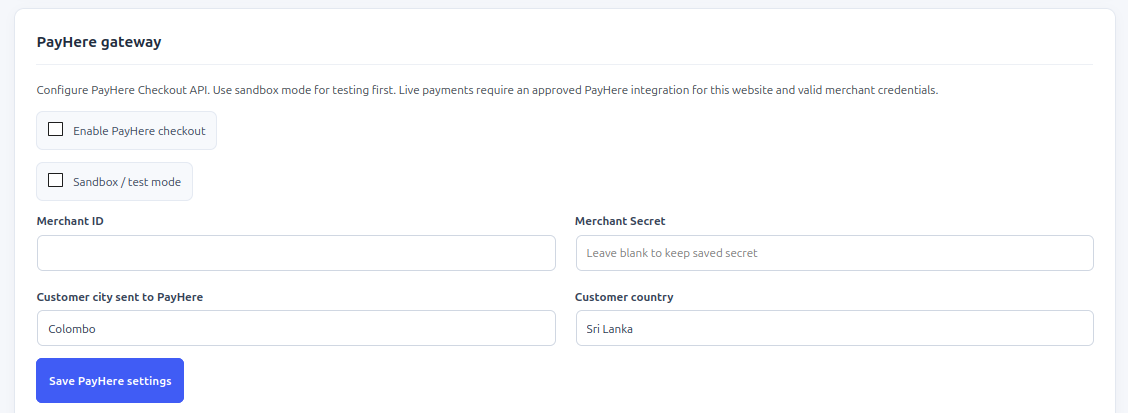
- Open DaamDesk → Payment Gateways and find the PayHere gateway panel.
- Enable PayHere checkout and select Sandbox / test mode while testing.
- Enter the PayHere Merchant ID and Merchant Secret from your merchant account.
- Review the customer city and country settings sent with checkout requests.
- Save the settings.
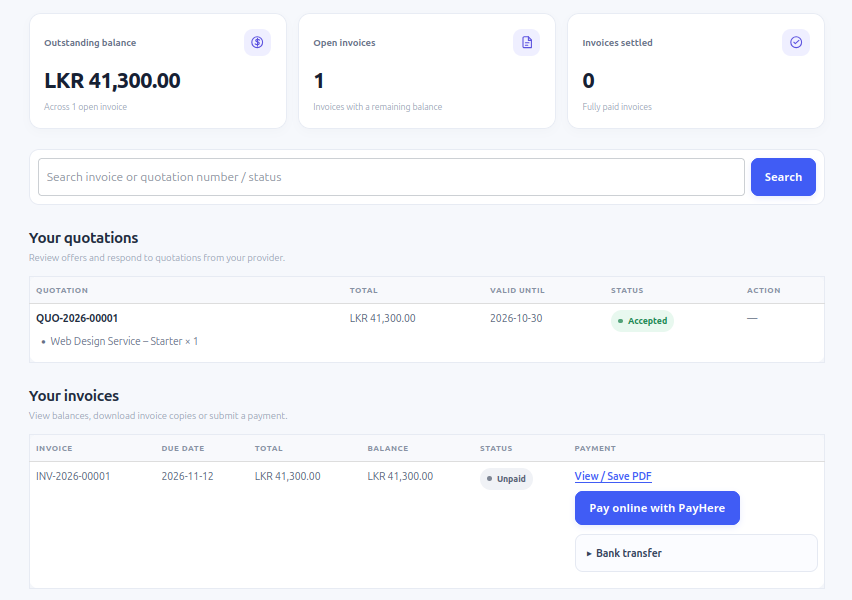
- Test checkout using an eligible customer and invoice. The current integration supports LKR and USD invoices only.
- Before switching to live mode, confirm the merchant account, notification/callback configuration, HTTPS, and provider dashboard activity.
PayHere payment verification
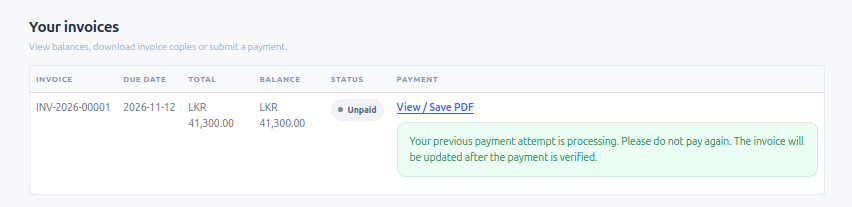
A successful PayHere notification records the payment as awaiting administrator verification. Review the transaction against PayHere before approving the pending payment in DaamDesk. Do not treat a return to the website alone as proof that funds have been received.
PayPal setup
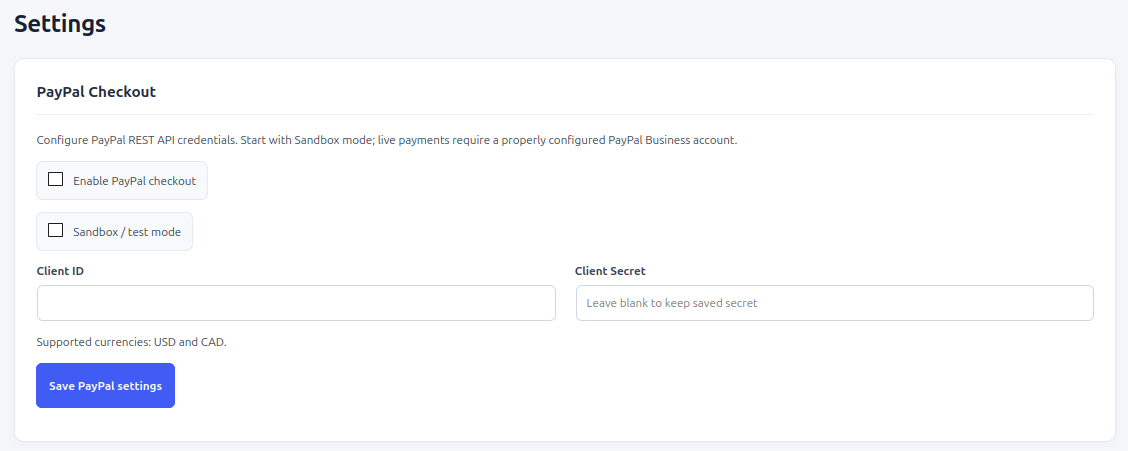
- Open DaamDesk → Payment Gateways and find the PayPal Checkout panel.
- Enable PayPal checkout and leave Sandbox / test mode enabled while testing.
- Enter the PayPal REST API Client ID and Client Secret for the selected environment.
- Save settings and test with the appropriate PayPal sandbox account.
- Only switch to live mode after verifying the merchant account and successful test workflow.
PayPal payment verification
The integration reports that a PayPal capture has completed but is awaiting administrator verification. Check the transaction in PayPal activity before approving the pending payment in DaamDesk.
Security and troubleshooting
Never publish merchant secrets, API credentials, or unredacted transaction data. If a payment status does not update, check the gateway dashboard, transaction reference, DaamDesk payment list, HTTPS/network configuration, and any available server logs. Redact personal and financial details before contacting support.
Screenshots from DaamDesk
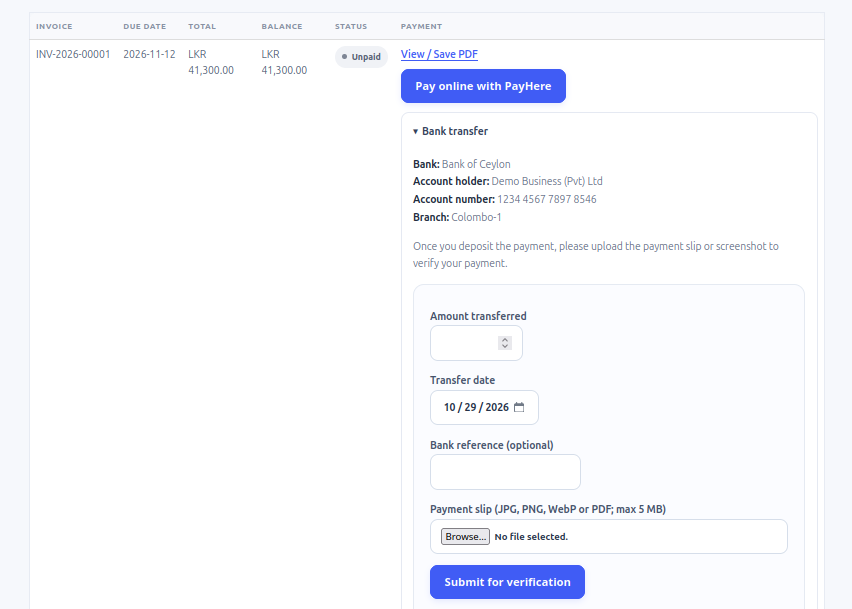
These reference images show the interface described in this guide. Labels may vary slightly between plugin versions.

Release-specific note
DaamDesk capabilities and settings can vary by version. This guide reflects DaamDesk v0.30.0 and the supplied interface screenshots. If a menu or option differs in your installation, check the release notes or contact support.
Thank you for your feedback. You can also send us details.