
Configure the business details and defaults before creating real quotations and invoices. In v0.30.0, the main settings areas are Business Settings, Payment Gateways, Customer Portal, AI Assistant, and the software activation screen.
Business Settings
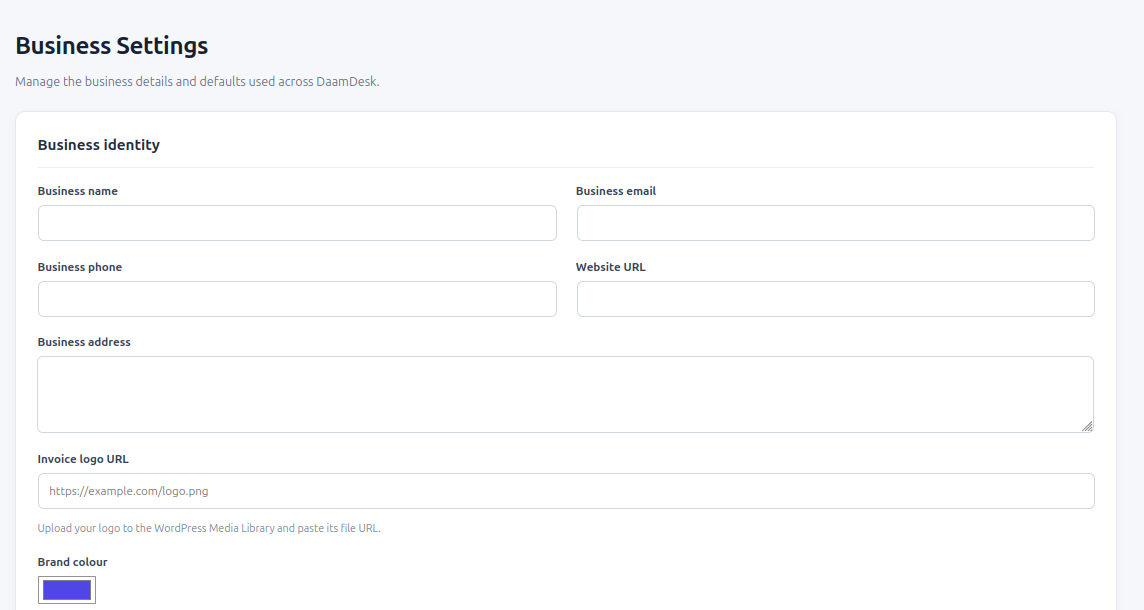
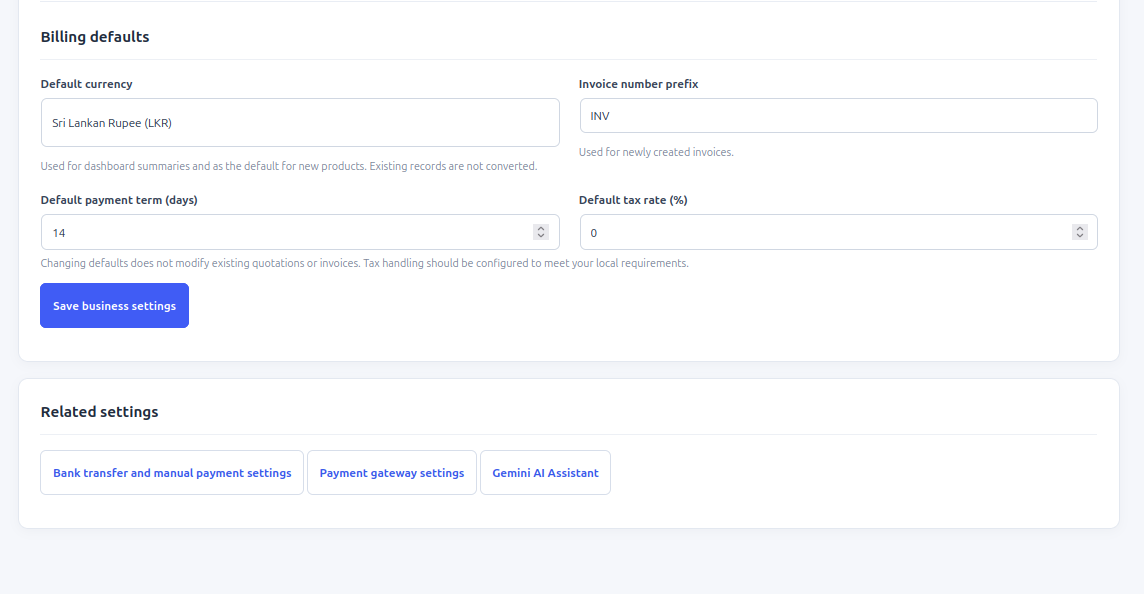
Open DaamDesk → Business Settings. The screen includes Business identity and Billing defaults. Business identity fields include business name, business email, business phone, website URL, and brand colour. Billing defaults include default currency, invoice number prefix, default payment term in days, and default tax rate percentage.
Supported default currencies
The business default currency selector includes LKR, USD, EUR, GBP, CAD, AUD, and INR in the current code. Product/service currency choices include LKR, USD, GBP, and EUR. Check the exact currency options shown in each screen before creating records; do not assume every screen supports every currency.
How defaults work
- Choose a clear invoice prefix before creating invoices.
- Set the default payment term in days.
- Set a default tax rate only if it matches your business requirements and local tax obligations.
- Review the selected currency before creating products or billing records.
- Save settings and revisit the screen to confirm the values persisted.
Existing records are not rewritten
The plugin notes that changing billing defaults does not modify existing quotations or invoices. Review existing records separately if business details or accounting requirements change.
Related configuration pages
- Payment Gateways: configure PayHere and PayPal credentials and test/live mode.
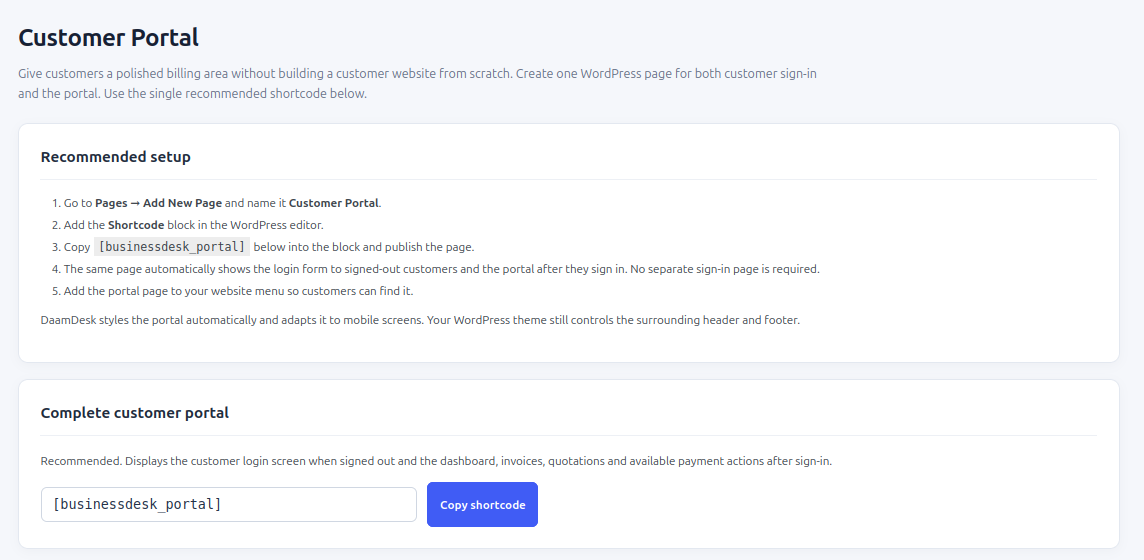
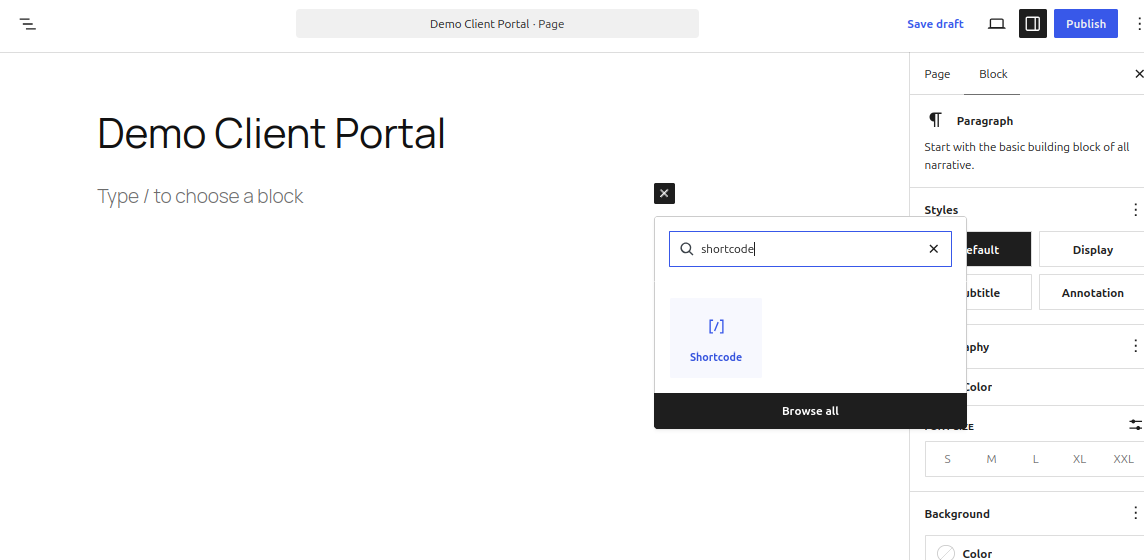
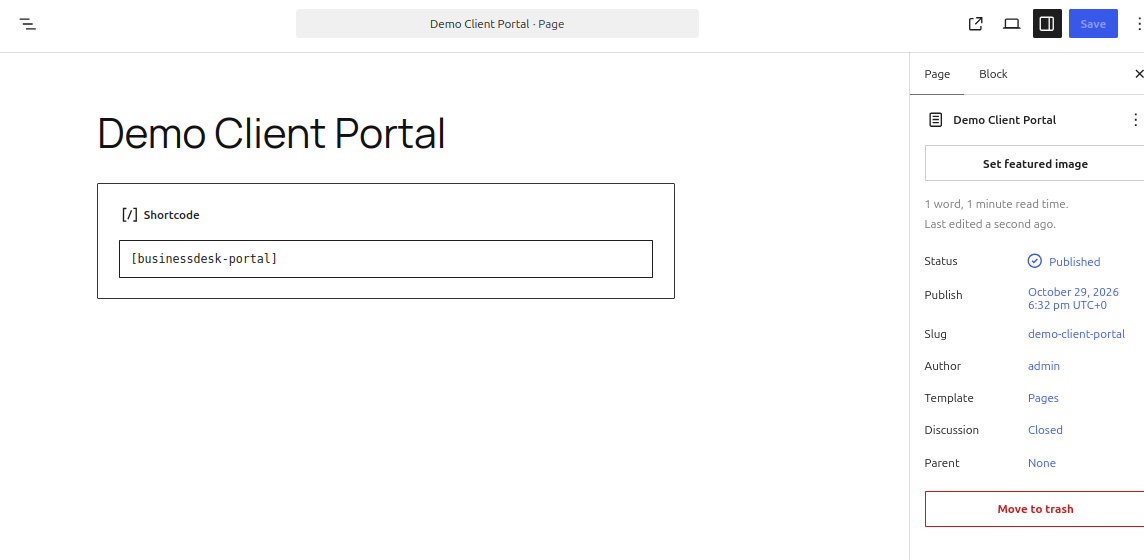
- Customer Portal: copy the shortcode and follow the page setup instructions.
- AI Assistant: enable the tool and configure a Google Gemini API key/model.
- Software activation: enter the activation server URL and activation key supplied with your DaamDesk purchase, save the settings, and activate the installation.
Screenshots from DaamDesk
These reference images show the interface described in this guide. Labels may vary slightly between plugin versions.
Release-specific note
DaamDesk capabilities and settings can vary by version. This guide reflects DaamDesk v0.30.0 and the supplied interface screenshots. If a menu or option differs in your installation, check the release notes or contact support.
Thank you for your feedback. You can also send us details.