
DaamDesk v0.30.0 includes customer support tickets with conversations and staff-side management.
Customer requirements
The customer must be signed in to a WordPress account linked to a DaamDesk customer profile to use the customer ticket area. If the account is not linked, the portal cannot identify the customer profile.
Customer ticket workflow
- Sign in to the DaamDesk customer portal.
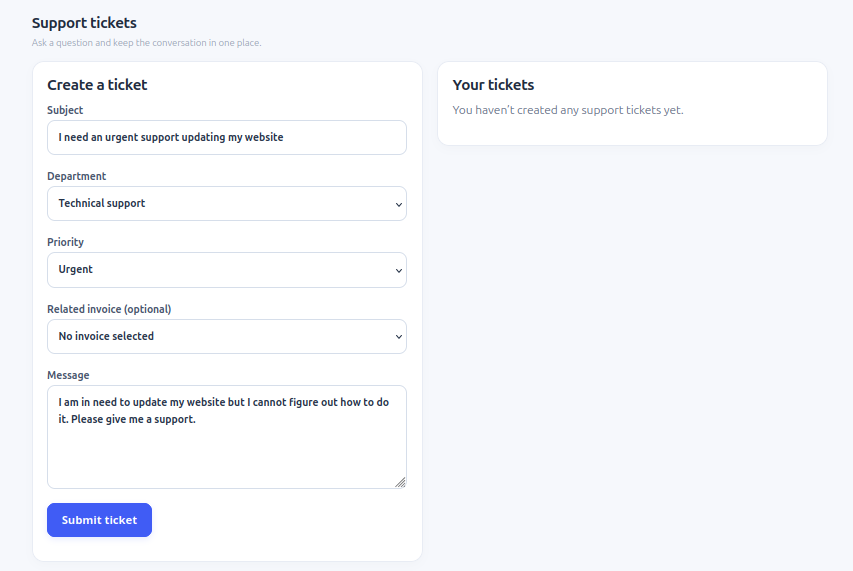
- Open the support ticket area.
- Create a ticket with a clear subject, department/category, and description using the fields presented.
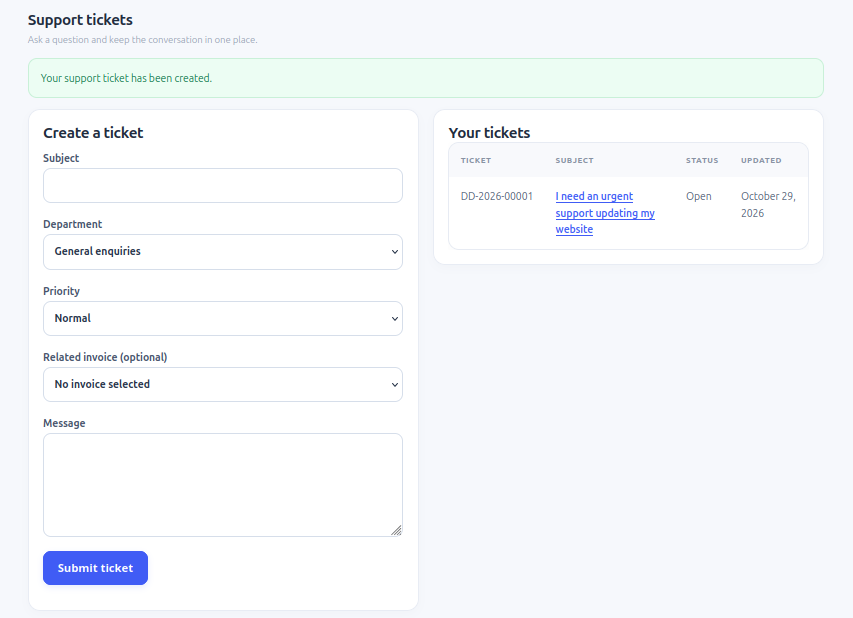
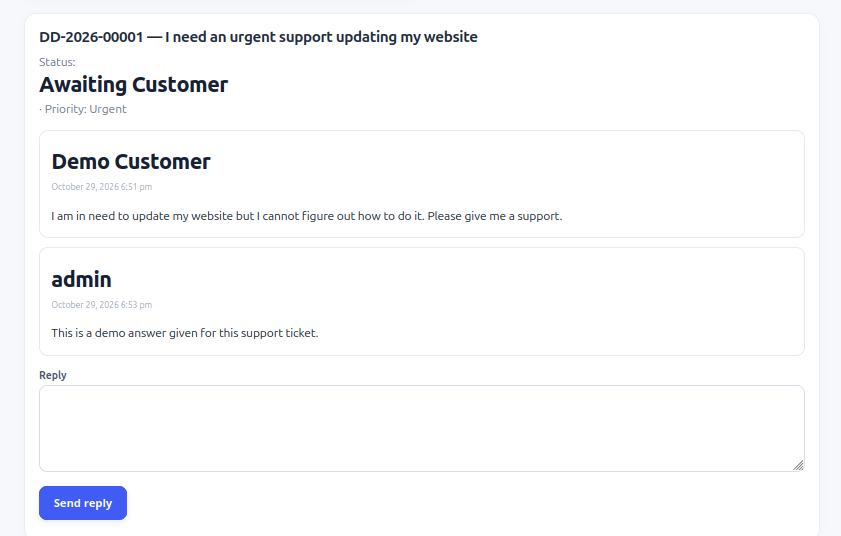
- Open the ticket to read replies and add a response.
- Return to the ticket list to follow its status.
Staff ticket workflow
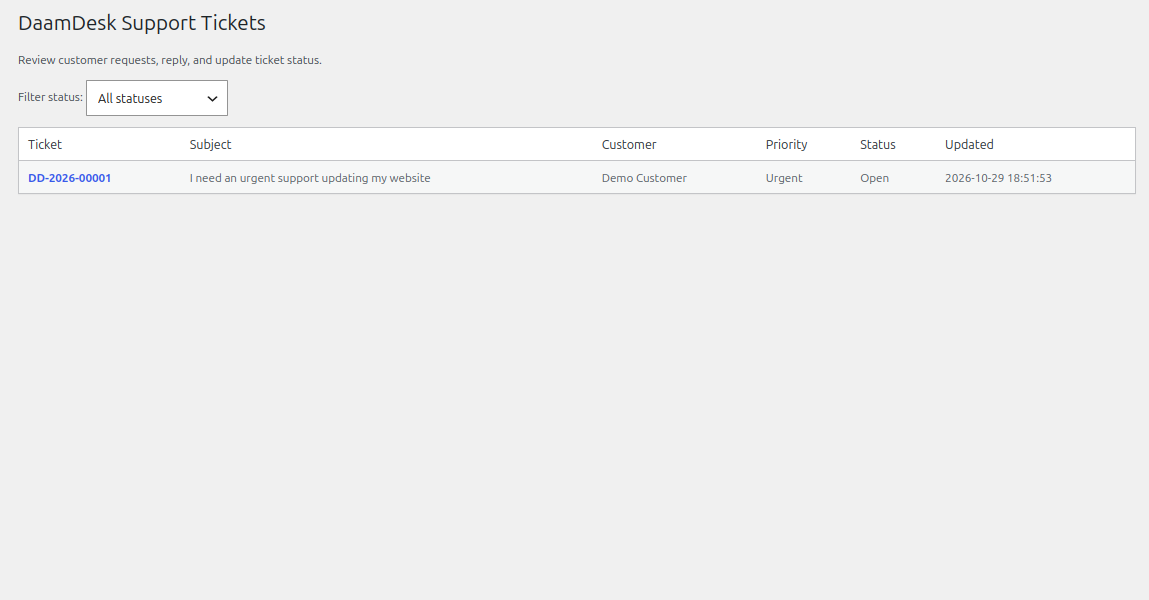
- Open WordPress administration → DaamDesk → Support Tickets using an account with ticket-management permission.
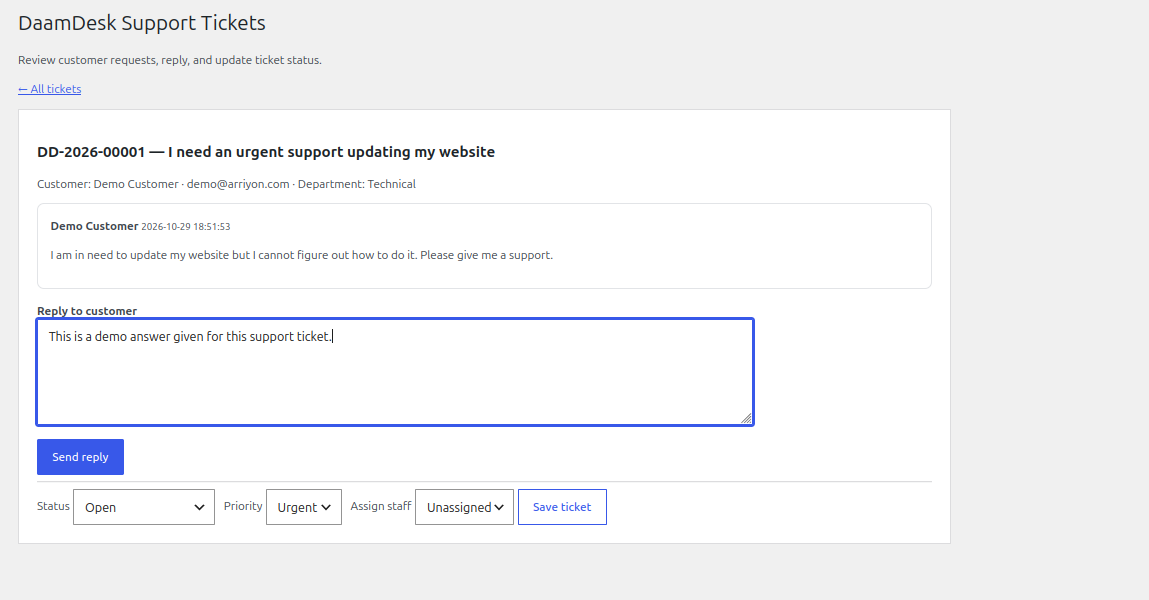
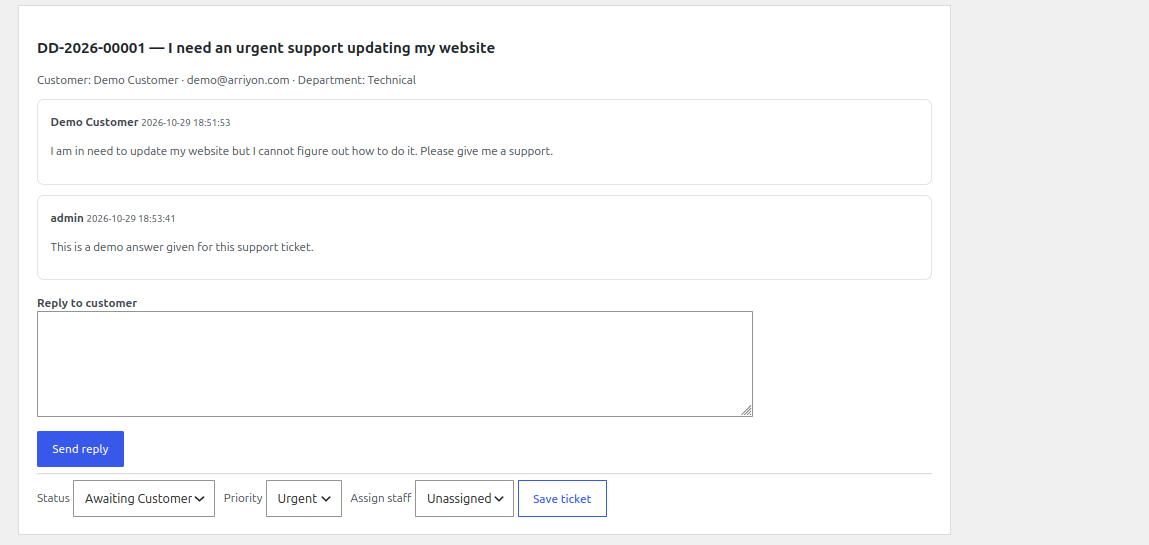
- Open a ticket to review the customer, conversation, and ticket details.
- Reply to the customer from the ticket view.
- Update the available status and priority controls and assign the ticket to a staff user when appropriate.
- Use the ticket status to communicate whether a response is needed from staff or the customer.
Email notifications and privacy
DaamDesk includes email notifications for ticket activity. Verify WordPress email delivery on your site. Do not put passwords, API keys, full payment details, or other unnecessary sensitive information in ticket conversations.
Screenshots from DaamDesk
These reference images show the interface described in this guide. Labels may vary slightly between plugin versions.
Release-specific note
DaamDesk capabilities and settings can vary by version. This guide reflects DaamDesk v0.30.0 and the supplied interface screenshots. If a menu or option differs in your installation, check the release notes or contact support.
Thank you for your feedback. You can also send us details.