
Use the booking administration area to review new requests, communicate with customers and maintain accurate booking information.
Review a booking request
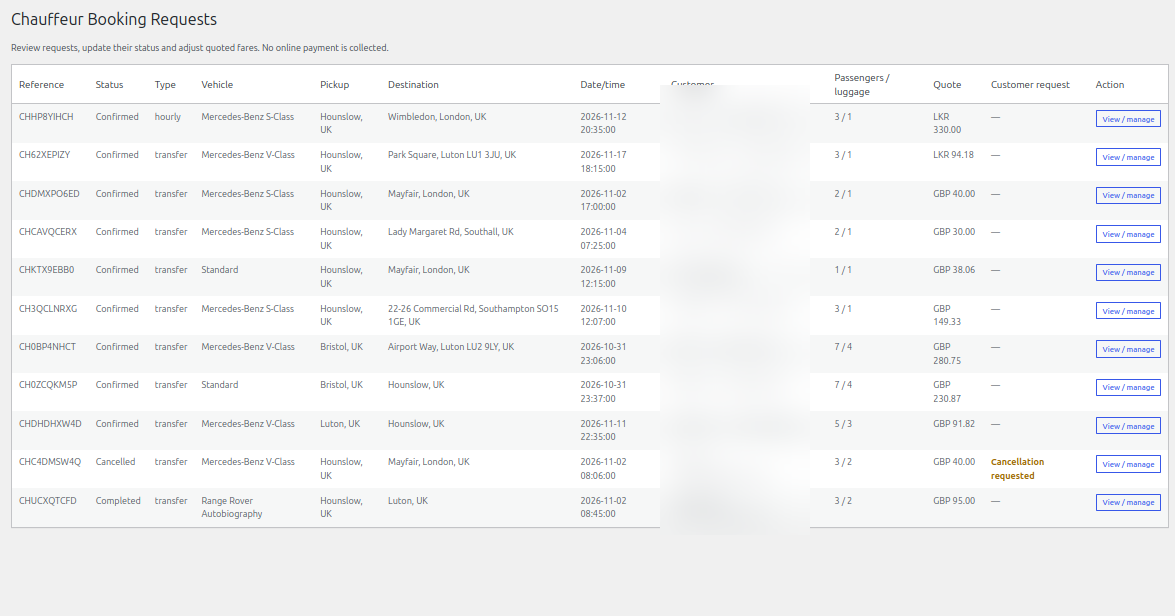
- Open Chauffeur Bookings → Bookings.
- Select View / manage beside the relevant booking.
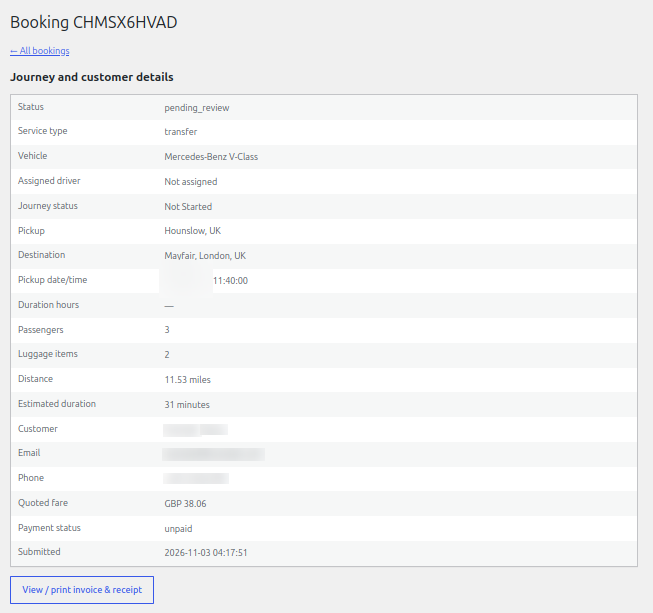
- Review the booking reference, service type, journey, pickup date and time, passenger and luggage counts, customer details and quoted fare.
- Check the request notes and payment status before making changes.
Update and confirm
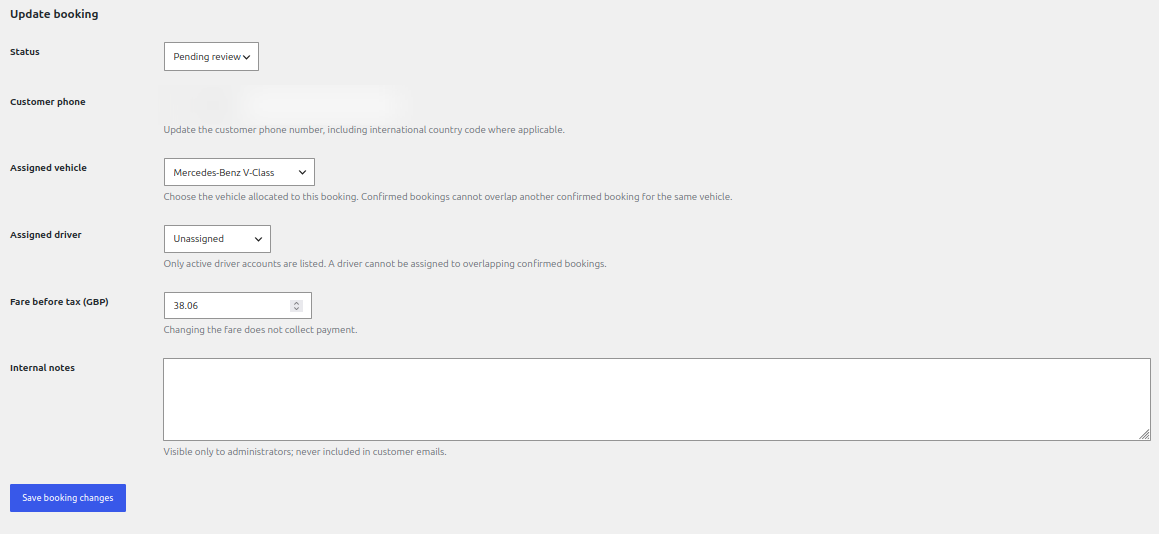
- Choose the appropriate booking status.
- Update the customer phone number if required.
- Assign an active vehicle and, where appropriate, an active driver.
- Review the fare before tax and any applicable tax calculation.
- Add internal notes for administrators. Internal notes are not included in customer emails.
- Save the booking changes and review the updated record.
Important booking checks
The plugin checks vehicle and driver assignment conflicts when a booking is saved. Confirmed bookings cannot overlap for the same allocated vehicle, and a driver cannot be assigned to overlapping confirmed bookings. Changing a quoted fare does not itself collect payment.
See it in ChauffeurDesk
These screenshots show the related customer and administration screens. Personal details and credentials have been obscured.
i
Keep your setup secure
Use HTTPS, restrict access to administrator and driver pages, keep payment and Maps credentials private, and test configuration changes before using them with live customers.