
Configure SMTP when you want WordPress booking messages to be sent through your email provider. Delivery depends on the host, port, encryption and credentials supplied by that provider.
Configure SMTP
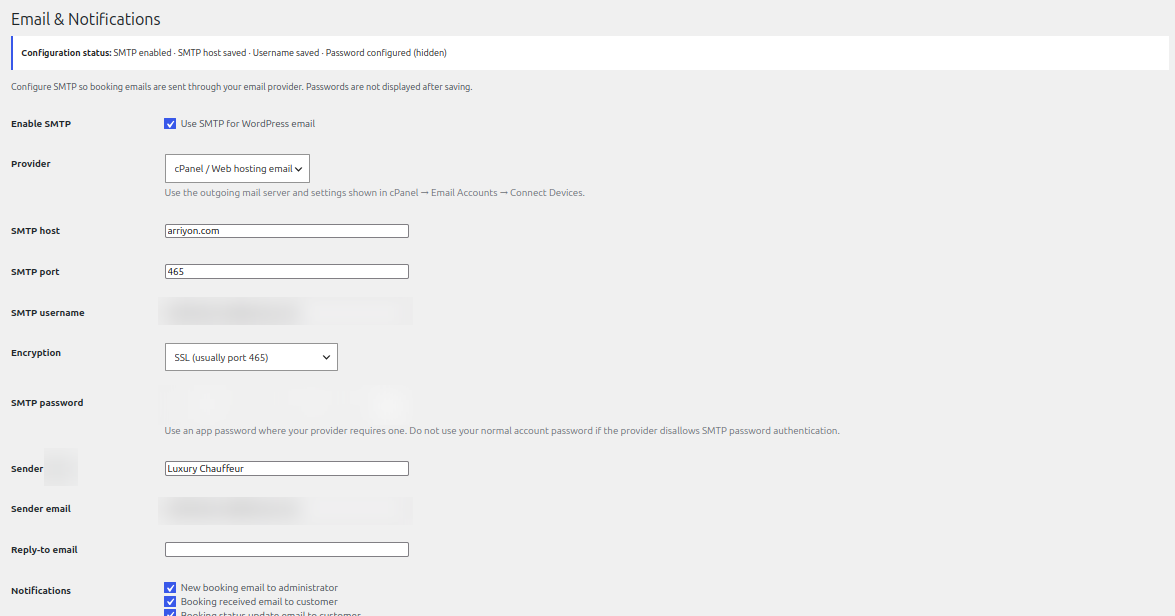
- Enable SMTP for WordPress email.
- Choose the provider profile that matches your email host.
- Enter the SMTP host and port supplied by your provider.
- Choose the required encryption method, such as SSL or TLS.
- Enter the SMTP username and password or app password.
- Set the sender name, sender email and optional reply-to email.
- Save the settings and use the test email function to verify delivery.
Notification types
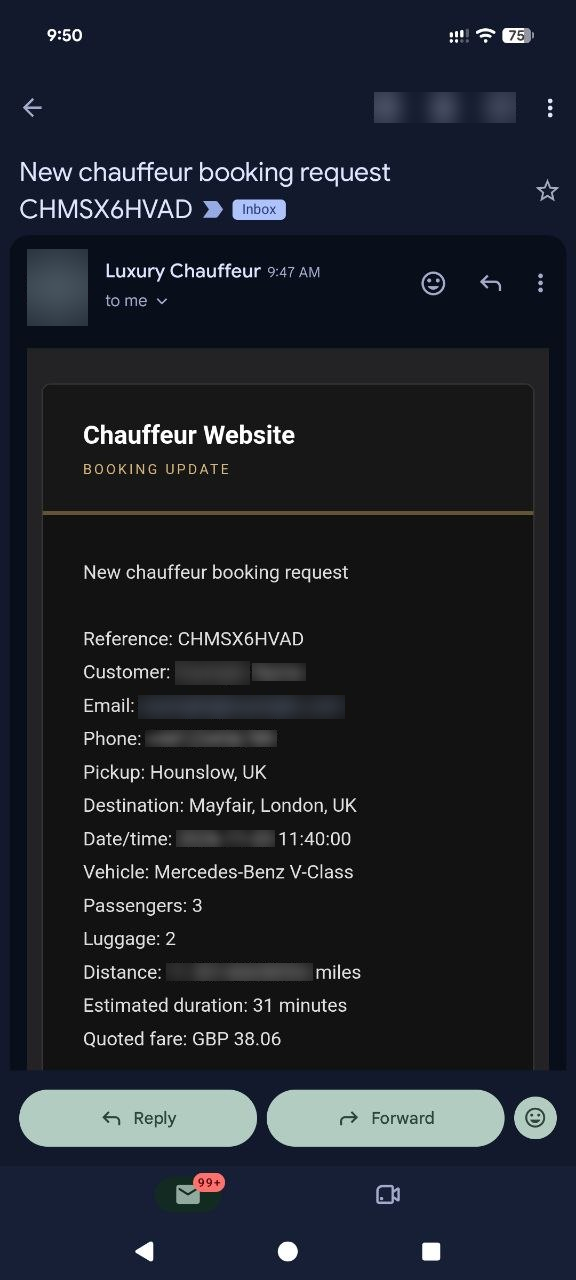
Review the available notification toggles for new booking alerts to the administrator, booking received messages to customers and booking status update messages. Send test bookings to confirm the correct recipient and message content.
Credential safety
Never share SMTP passwords, API secrets or unredacted screenshots. Use an app password where your email provider requires one, and store credentials only in the plugin settings.
See it in ChauffeurDesk
These screenshots show the related customer and administration screens. Personal details and credentials have been obscured.
Keep your setup secure
Use HTTPS, restrict access to administrator and driver pages, keep payment and Maps credentials private, and test configuration changes before using them with live customers.